
It is important that you take two minutes to read this page till the end. Please do not skip any step.
After reading once, read again and follow the steps.
Also, before you proceed, please understand that all Android phones and tablets are different. So, the steps shown here may vary slightly on your phone. But don’t worry. Use your understanding. Take help from someone around, like your son, daughter, or grandkids, if needed.
How to open WritingLaw’s ZIP file on Android phone or tablet
Step 1:
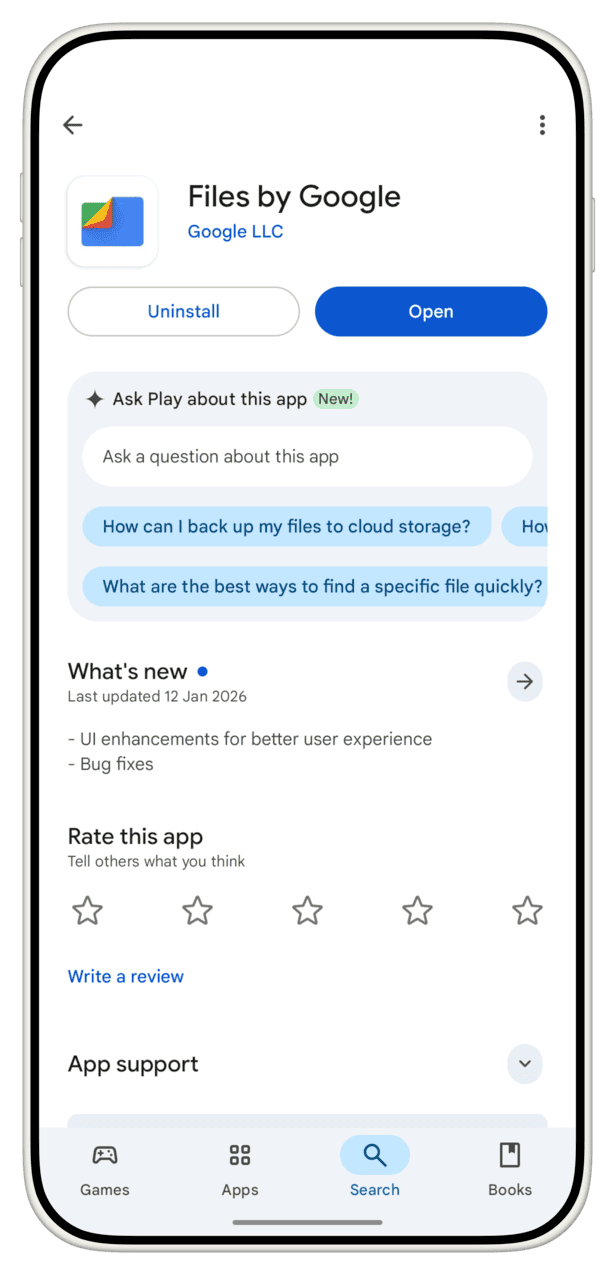
- Download Google’s official Files app on your Android phone from the Play Store. It is a free app. It also comes pre-installed on many Android phones. If the application is outdated, update it from the Play Store.
Step 2:
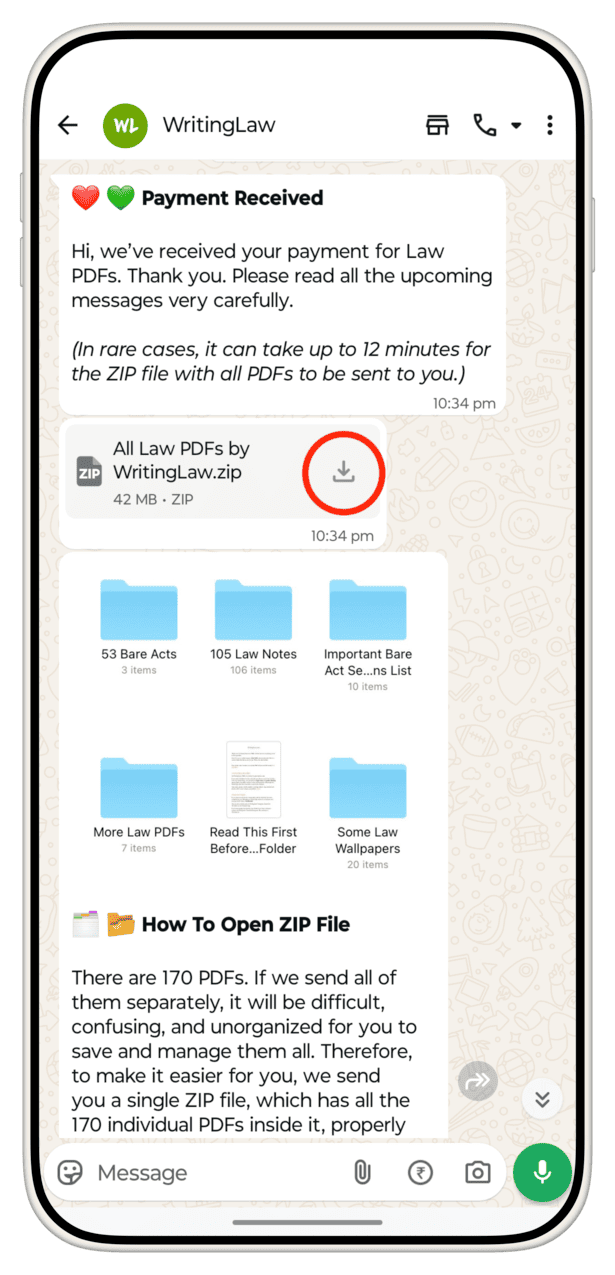
- Open WhatsApp and go to your chat with WritingLaw. Tap on the received ZIP file to download it.
Step 3:
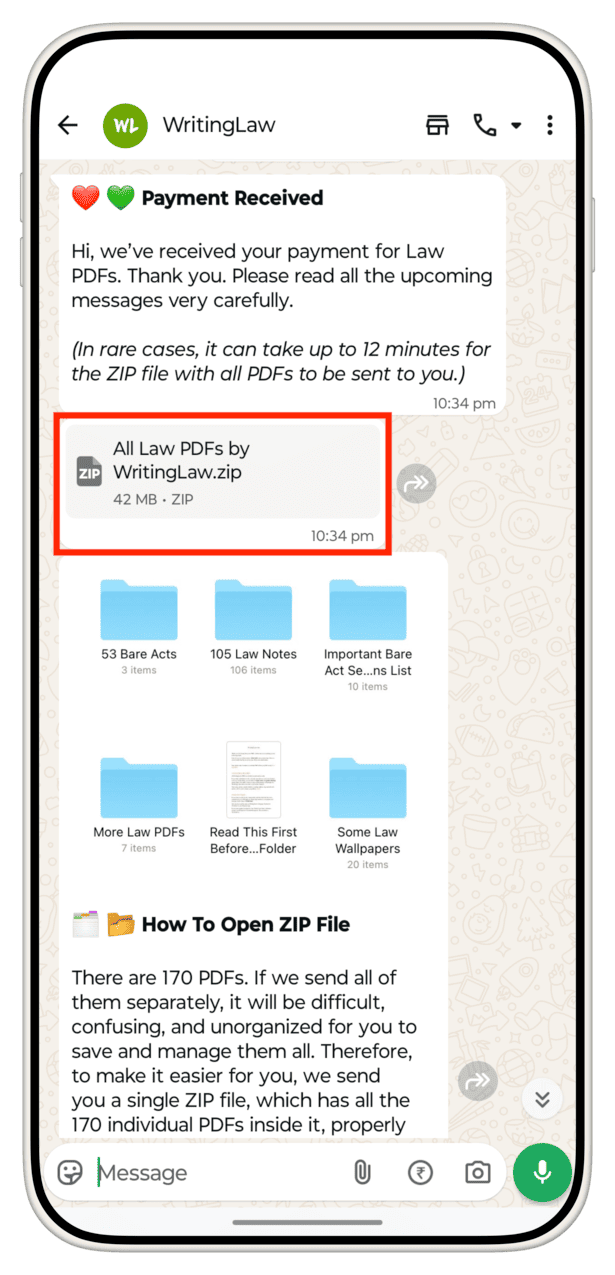
- Once the file is downloaded, tap on it again.
Step 4:
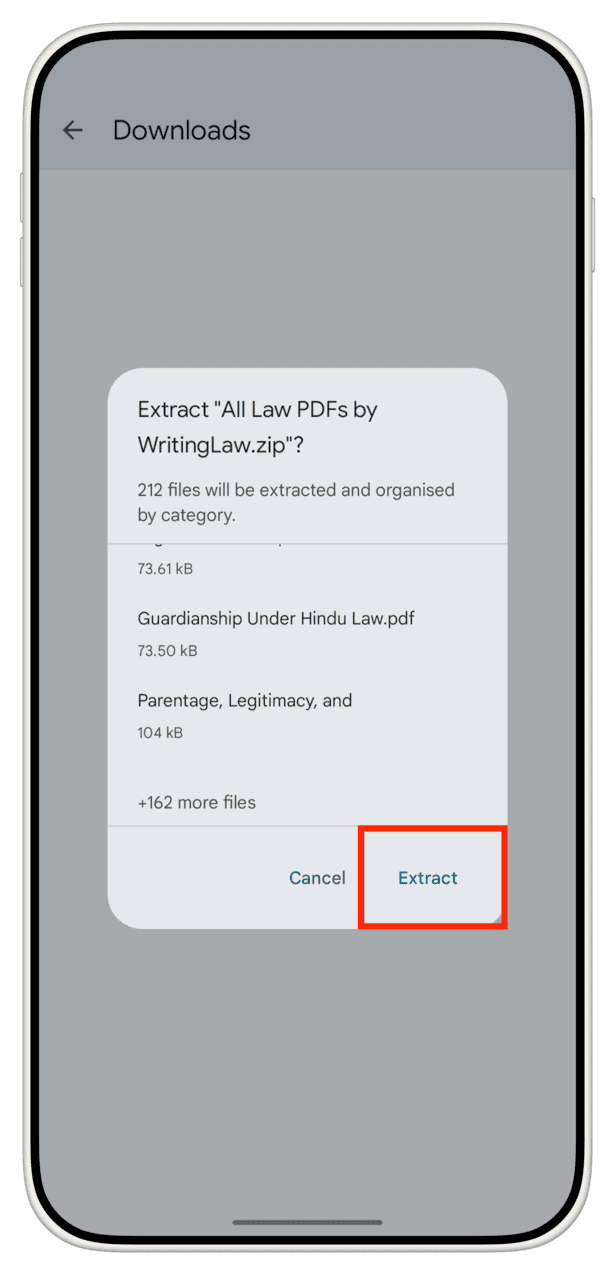
- Then, tap on Extract.
Step 5:
- Do not close this screen and wait for the process to complete.
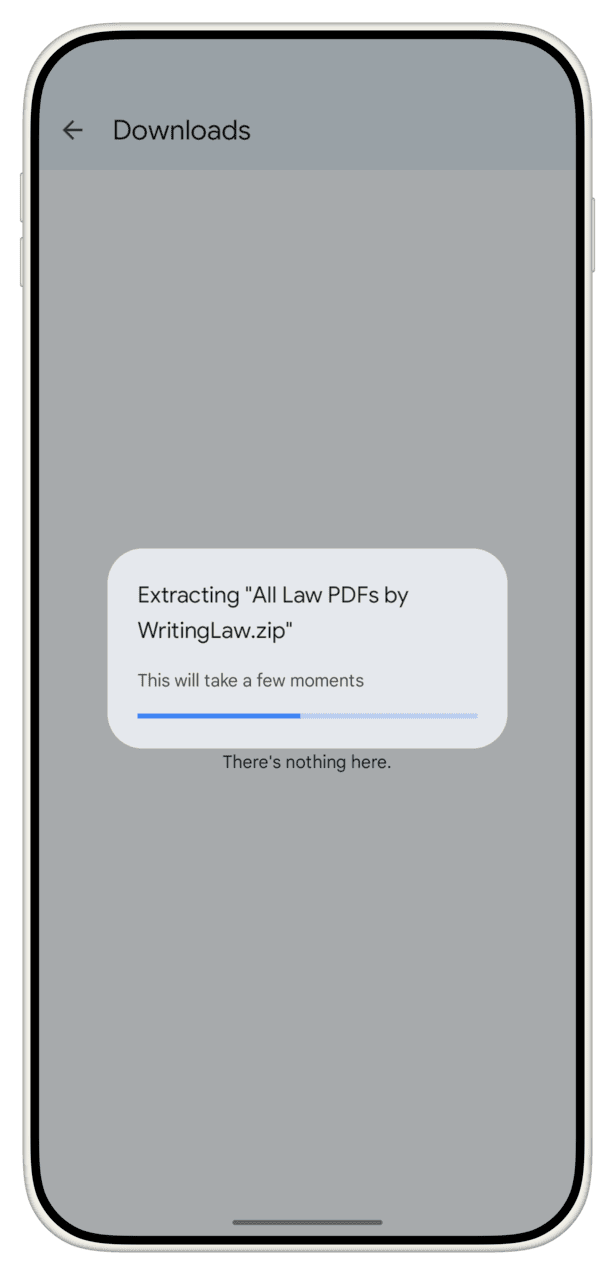
Step 6:
- After the process completes, tap on Done.
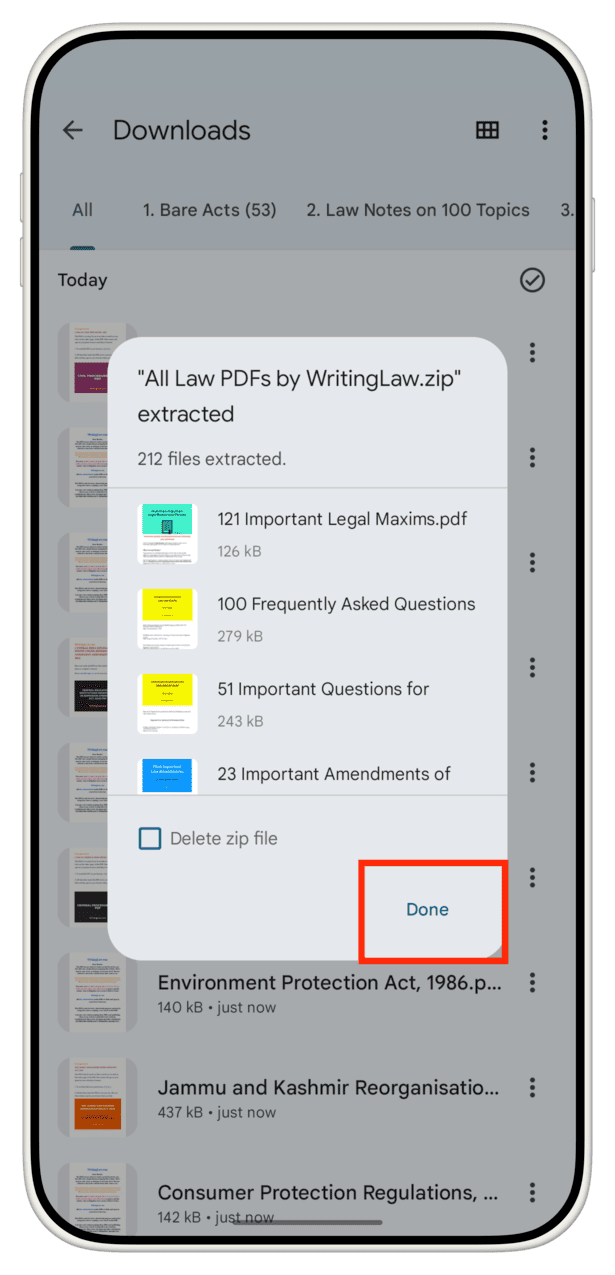
Step 7:
- Now, go out of WhatsApp and open the Files app.
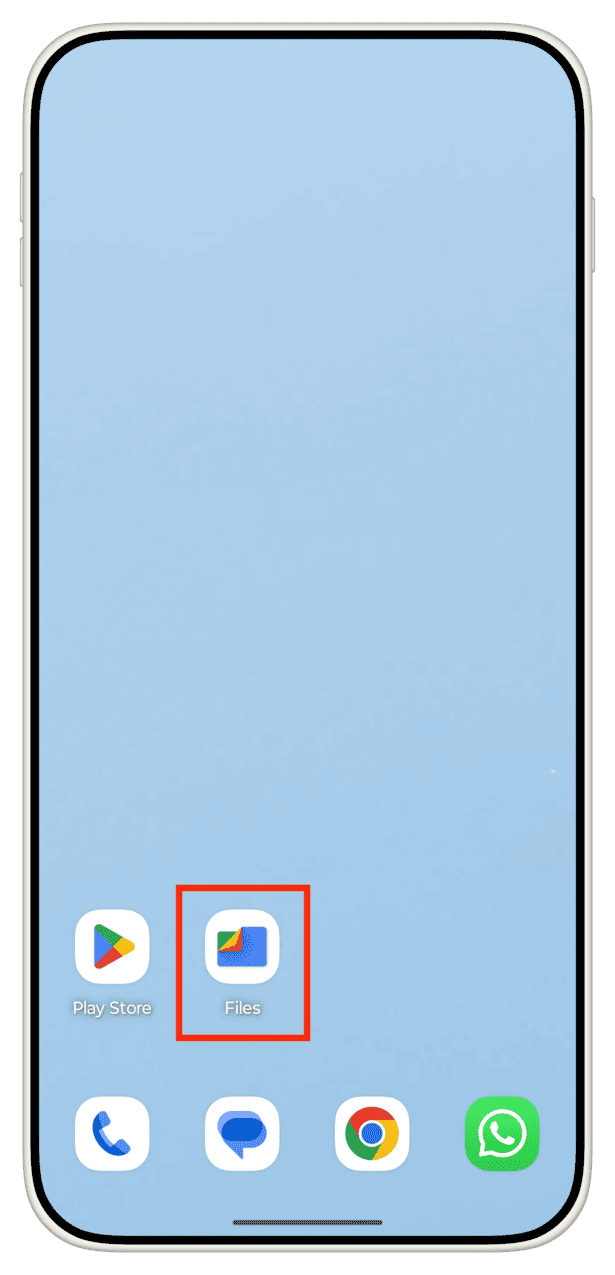
Step 8:
- You will see all PDFs here. But to see them in organized folders, tap Internal Storage at the bottom.
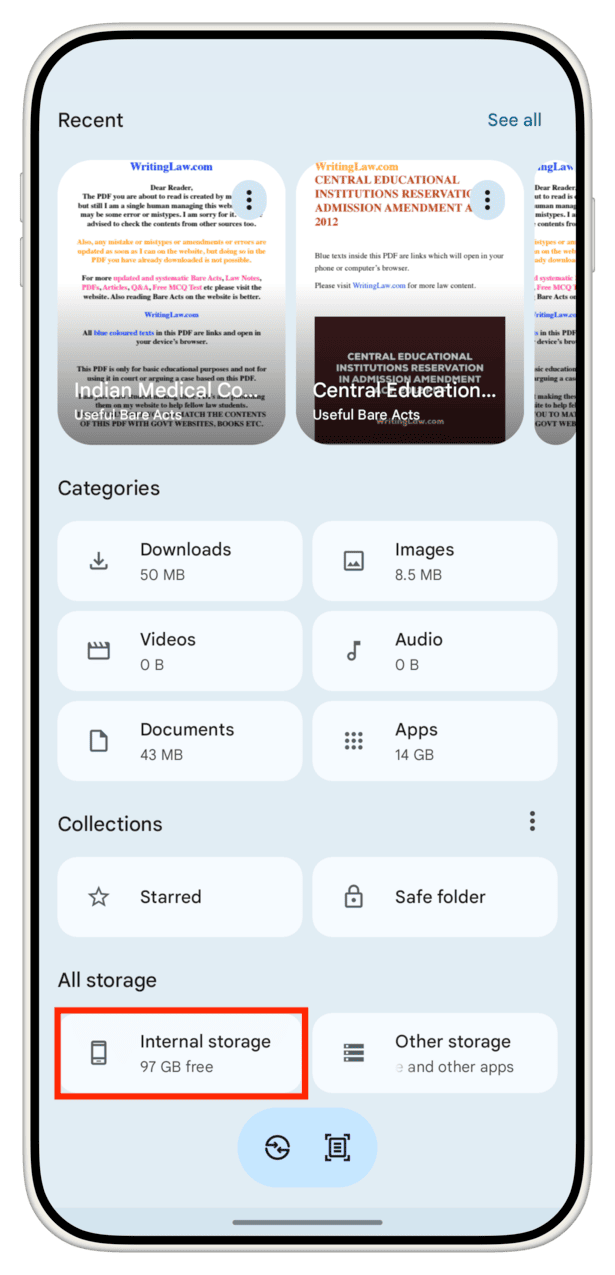
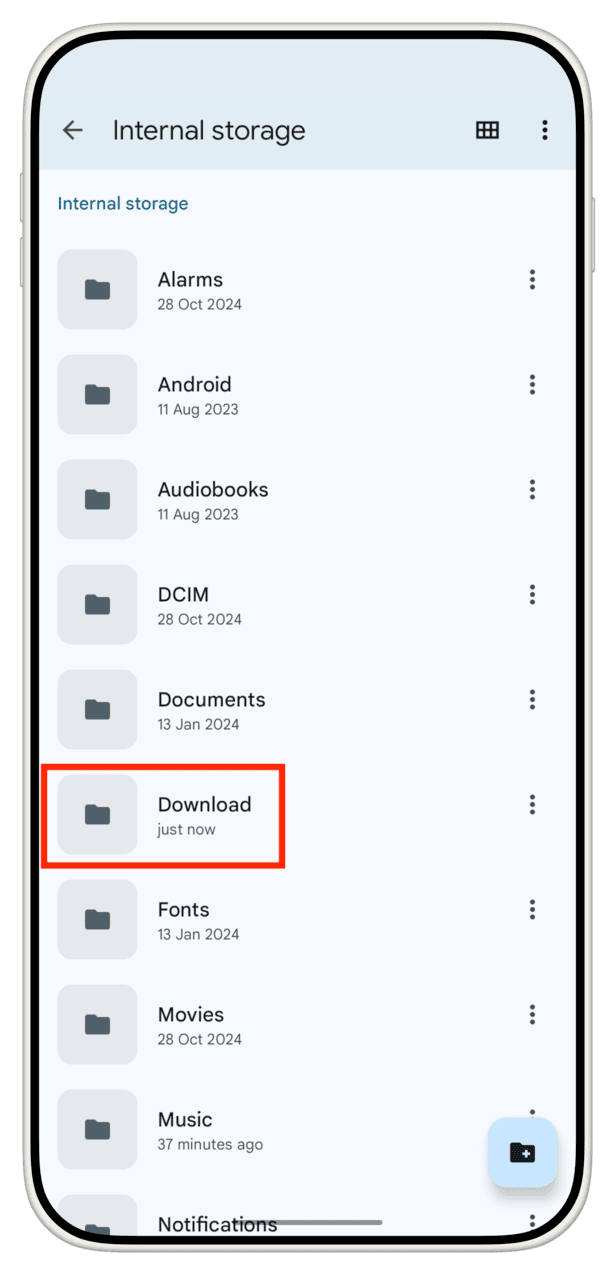
Step 9:
- Tap on the Download folder.
Step 10:
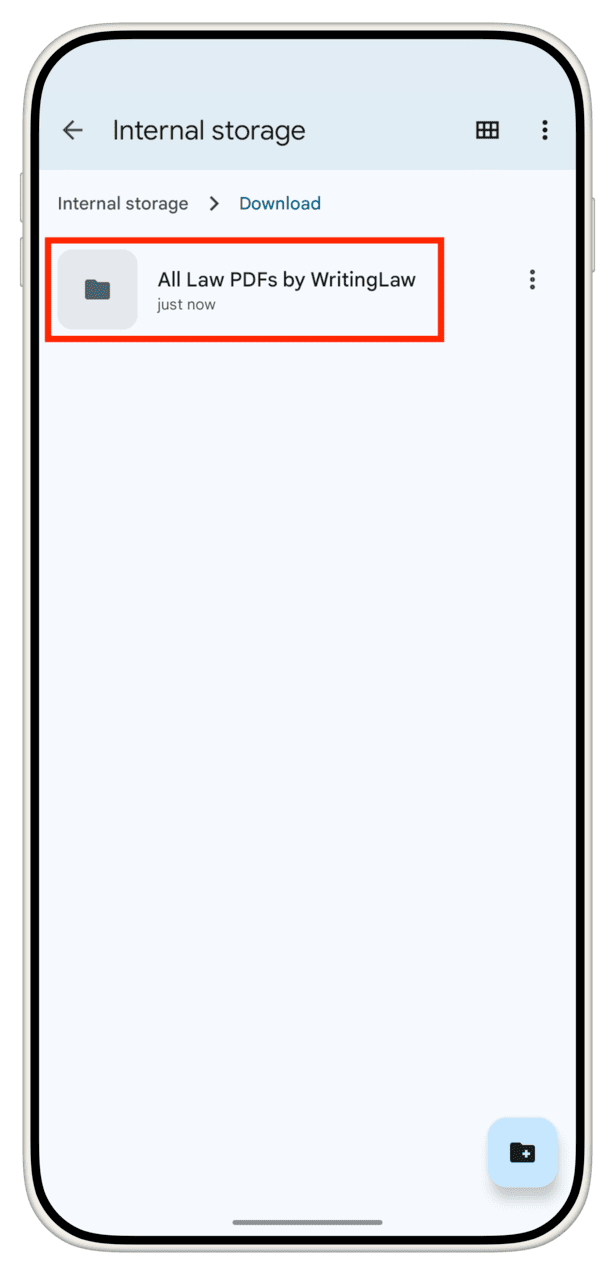
- You will see an All Law PDFs by WritingLaw folder. Open it.
Step 11:
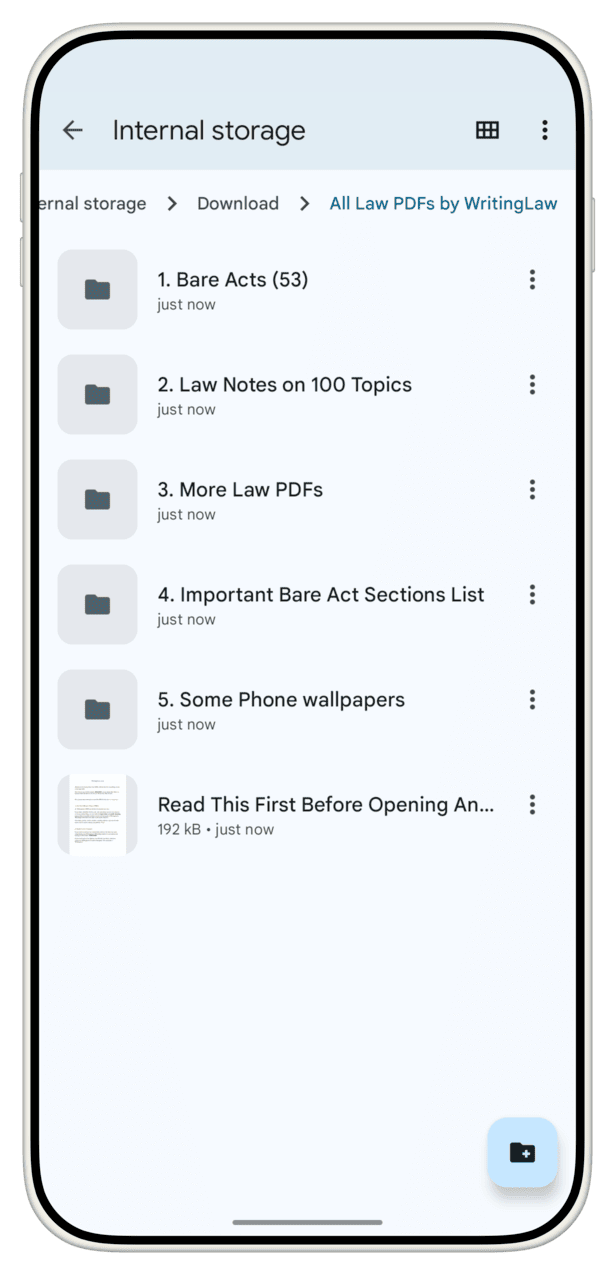
- You will find all the Bare Act PDFs, Law Notes, wallpapers, and more here in organized folders.
Important:
- You have to follow the above process only one time. After that, you will find everything in your phone’s Files app. Do not extract again in WhatsApp.
- If you see a folder named _MACOSX, please delete that. This is a system folder that has no use for you.
- If you see files whose name starts with a dot (.) like .DS, you may delete them too.
Another method
1. Click on this link to download Mi File Manager for free from the Google Play Store. It works on any Android phone from any company.
2. Open Mi File Manager and allow it the necessary permissions it asks for.
3. Now, open WritingLaw’s WhatsApp chat and click on the down arrow to download the ZIP file. (If you do not see the arrow, it means the file has been automatically downloaded. Move to the next step.)
4. Click on the ZIP file*. Now click on Extract files to → Just Once. At last, click on Extract.
*If you have multiple file managers, you may see many options. Use Mi File Manager to extract the files.
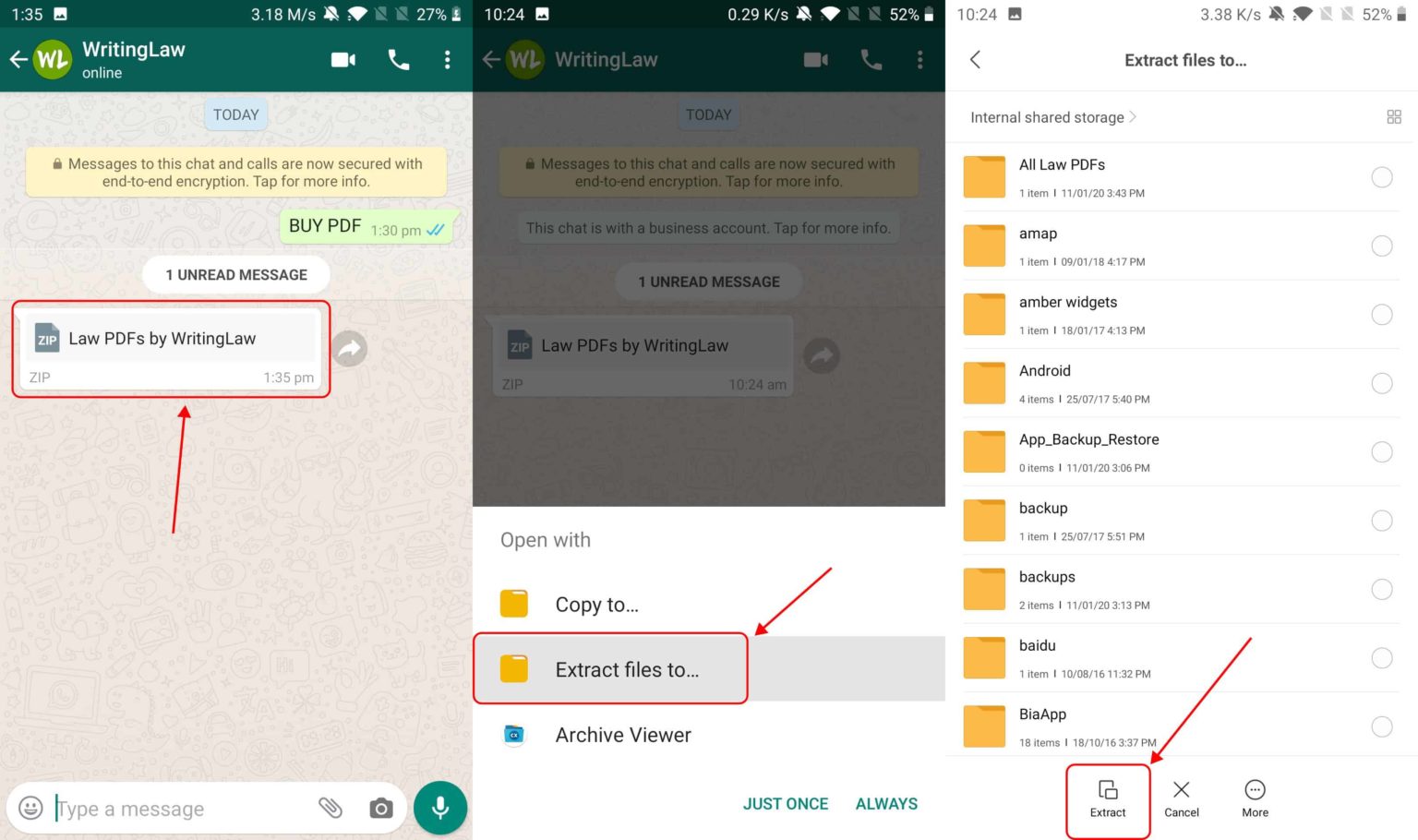
5. Once the process completes, open the Mi File Manager app or any file manager app on your phone and go inside the All Law PDFs by WritingLaw folder. You will find everything in it.
Note:
- You have to follow the above process only once. After that, you will find everything in your phone’s file manager app. Do not extract again in WhatsApp.
- You may also see the instructions video I sent on WhatsApp. It has all the above steps.
See this 40-second video showing how to unzip a ZIP file on Android
How to use the Section Box in the PDFs?
Some lengthy Bare Act PDFs by WritingLaw have a Jump To Chapter + Section box in the beginning. You can tap the links there to go to the exact section instantly.
The updated Google Files app on recent phone models supports PDF jump-to links. So, use it there. Or, use these free PDF reader apps after downloading them from the Play Store:
Note:
- The Apple Files app on iPhone also supports jump-to links in PDFs.
- And almost all computer PDF apps, including browsers like Chrome and Safari, support jump-to links.
Thank you